
Assistive Technology & Dyslexia
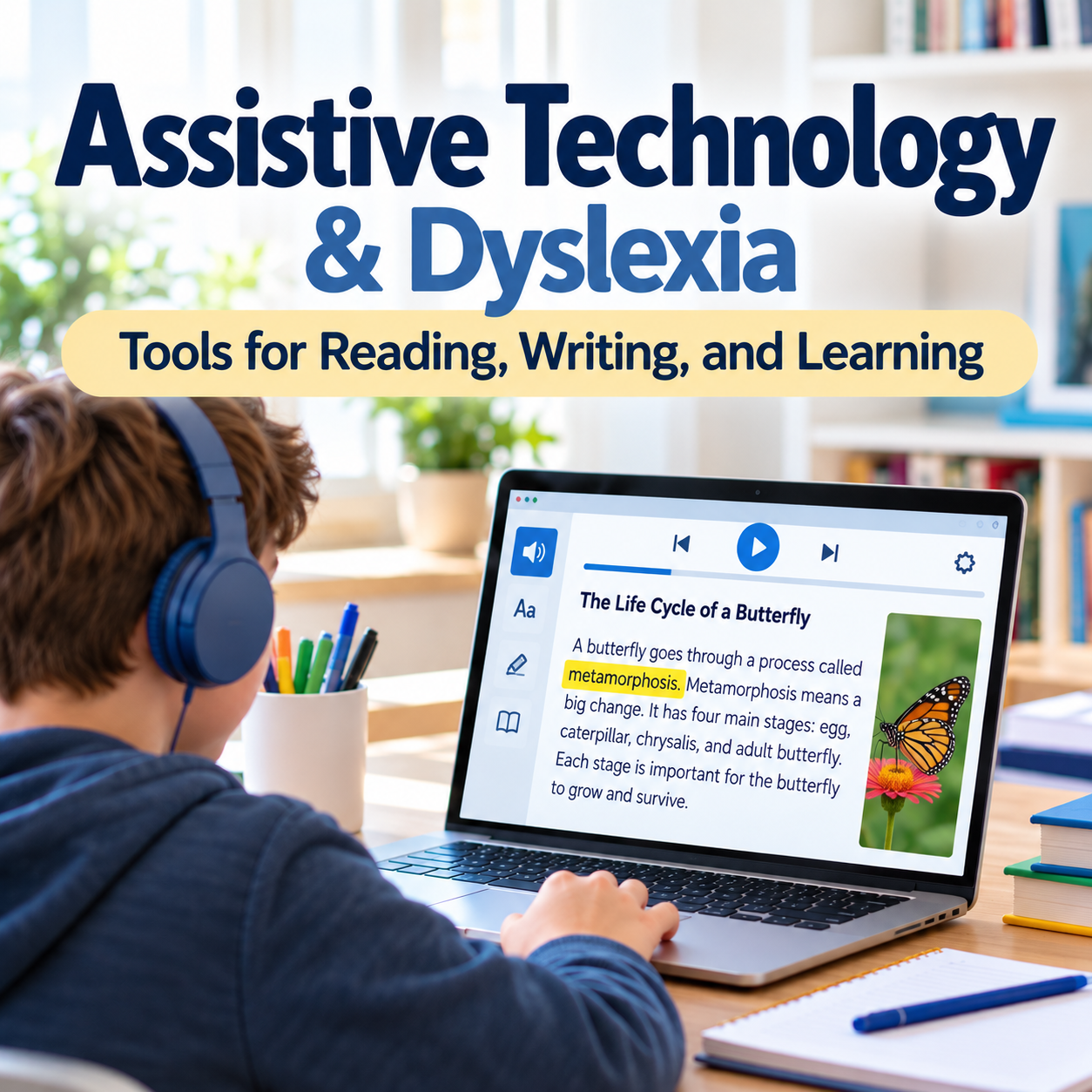
A student spends 45 minutes trying to read a chapter for science class. By the time they finish, they are exhausted and have difficulty remembering what they read. Another student knows exactly what they want to say in an essay but struggles to spell the words and get their thoughts onto paper.
For individuals with Dyslexia, challenges with reading and writing can affect much more than English class. They can make it difficult to complete assignments, study for tests, read instructions, write emails, and manage everyday tasks. Assistive technology can help.
Many of these tools are already available on computers, tablets, and smartphones. Others are specialized programs designed to support people with reading and writing disabilities. The goal is not to make the work easier or eliminate the need to develop reading and writing skills. It is to give individuals another way to access information, complete tasks, and demonstrate what they know.
What Is Assistive Technology?
Assistive technology, often called AT, includes devices, software, applications, and other tools that help individuals with disabilities perform tasks that might otherwise be difficult. For someone with Dyslexia, assistive technology may help with reading written information, spelling words, organizing ideas, or producing written work.
Assistive technology can be simple or sophisticated. A basic tool might be a digital checklist that helps a student organize an assignment. A more advanced tool might read an entire textbook aloud while highlighting each word on the screen.
Common types of assistive technology for Dyslexia include:
Text-to-speech software that reads written information aloud.
Speech-to-text software that converts spoken words into written text.
Audiobooks and accessible digital textbooks.
Spelling, grammar, and word-prediction tools.
Digital note-taking and recording tools.
Electronic graphic organizers and planning tools.
Reading pens and scanning applications.
Tools that adjust how digital text is displayed.
Not every person with Dyslexia needs every tool. The most useful technology depends on the individual's needs, age, preferences, and the tasks they are trying to complete.
Assistive Technology Is Not Cheating
One concern that sometimes comes up is whether using technology gives a student an unfair advantage. Consider a student who understands a history lesson but struggles to read the test questions. If the student uses approved text-to-speech technology, they are still responsible for understanding the history content and selecting or writing the correct answers.
The technology removes a reading barrier. It does not provide the answers. The same is true for a student who uses speech-to-text to write an essay. The student must still develop ideas, organize information, and communicate their understanding. Assistive technology helps level the playing field by allowing students with Dyslexia to access the curriculum and demonstrate what they know.
It is also important to distinguish between assistive technology and reading intervention. A student may use text-to-speech to access a grade-level science textbook while receiving specialized instruction to improve decoding, reading fluency, and spelling. Both supports serve important but different purposes. Assistive technology provides access. Reading intervention develops reading skills.
Text-to-Speech: Listening to Written Information
Text-to-speech, often abbreviated TTS, is one of the most commonly used assistive technology tools for individuals with Dyslexia. It converts written digital text into spoken words. Many programs also highlight words or sentences as they are read aloud, allowing users to follow along visually.
How it can help
Text-to-speech can be useful for:
Reading digital textbooks and articles.
Listening to assignment instructions.
Accessing online research.
Reviewing emails and documents.
Reading longer passages without relying entirely on independent decoding.
Listening to written work to identify missing words or awkward sentences.
Common text-to-speech tools
Microsoft Immersive Reader: Available in supported Microsoft applications, Immersive Reader can read text aloud and provide options for adjusting the reading display. Website: https://www.microsoft.com/education
Apple Spoken Content and Accessibility Features: iPhones, iPads, and Macs include built-in accessibility features that can read selected text or screen content aloud. Website: https://www.apple.com/accessibility/
Google Reading and Accessibility Features: Chromebooks, Android devices, and Google products offer reading support through features such as Select-to-Speak and other accessibility options. Website: https://www.google.com/accessibility/
Read&Write by Everway (formerly Texthelp): Read&Write offers literacy support tools, including text-to-speech, word prediction, and reading and writing assistance. Website: https://www.everway.com/
Before purchasing software, check whether the student's school device already includes text-to-speech. Choose a short reading passage, demonstrate how to activate the tool, and allow the student to practice adjusting the reading speed. Students should also learn how to pause, repeat sections, and navigate between paragraphs.
Speech-to-Text: Turning Spoken Words Into Writing
Speech-to-text, sometimes called dictation or voice typing, converts spoken language into written text. For students who have strong verbal ideas but difficulty with spelling or written expression, this can be particularly helpful.
How it can help
Speech-to-text can support:
Writing paragraphs and essays.
Answering written questions.
Taking notes.
Drafting emails.
Creating outlines.
Getting ideas onto paper before editing.
Common speech-to-text tools
Google Docs Voice Typing: Google Docs includes voice typing on supported browsers and devices. Website: https://docs.google.com/
Microsoft Dictate: Microsoft Word and other supported Microsoft applications include dictation features. Website: https://www.microsoft.com/microsoft-365
Apple Dictation: Apple devices include built-in dictation features that allow users to speak instead of typing. Website: https://www.apple.com/accessibility/
Getting started
Begin with a short response rather than a full essay. Have the student dictate two or three sentences, review the written result, and correct any errors. Students may need practice speaking punctuation, organizing their thoughts before dictating, and editing the transcription. Speech-to-text does not automatically create a well-organized written response. It is a tool that helps students produce a draft.
Audiobooks and Accessible Digital Books
Audiobooks allow individuals to listen to books rather than relying entirely on reading printed text. For students with Dyslexia, audiobooks can provide access to grade-level literature, textbooks, and other educational materials. Some accessible reading programs also display the written text and highlight words as they are spoken.
How they can help
Audiobooks can allow students to:
Access books that are above their independent decoding level.
Participate in classroom literature discussions.
Learn content from grade-level textbooks.
Enjoy books without the same level of reading frustration.
Build vocabulary and background knowledge.
Complete reading assignments more independently.
Common audiobook and accessible reading resources
Learning Ally: Learning Ally provides human-read audiobooks and reading supports for eligible individuals with reading disabilities, including Dyslexia. Many titles include synchronized text highlighting, allowing students to follow along while listening. Website: https://learningally.org/
Bookshare: Bookshare provides accessible digital books for eligible individuals with print disabilities. Books may be accessed using text-to-speech, adjustable text displays, and other supported formats. Website: https://www.bookshare.org/
Public Library Audiobooks: Public libraries often provide audiobooks through digital lending services. These can be useful for recreational reading and some school assignments, although they may not provide the same accessibility features as specialized reading programs.
Spelling, Grammar, and Word-Prediction Tools
Spelling can remain challenging for individuals with Dyslexia, even when they understand the material and have strong verbal communication skills. Spelling and grammar tools can help users identify errors, select words, and revise written work. Word-prediction software suggests possible words as a person types.
How these tools can help
They may support:
Writing assignments.
Email communication.
Spelling unfamiliar words.
Editing written work.
Selecting words that are difficult to spell.
Improving the readability of written responses.
Common tools
Built-in Spelling and Grammar Checker: Microsoft Word, Google Docs, and many other writing programs include spelling and grammar assistance.
Co: Co provides word prediction and writing supports designed for individuals who experience writing difficulties. Website: https://www.donjohnston.com/
Read&Write: Read&Write includes tools that can support spelling, vocabulary, reading, and writing. Website: https://www.everway.com/
Grammarly: Grammarly provides spelling, grammar, and writing feedback. It is primarily a general writing tool rather than a Dyslexia-specific program. Website: https://www.grammarly.com/
Digital Graphic Organizers and Writing Planning Tools
Some individuals with Dyslexia also experience difficulty organizing written ideas. Digital graphic organizers can help users plan assignments before writing. These tools are particularly useful for essays, reports, presentations, and longer projects.
How they can help
Graphic organizers can support:
Brainstorming ideas.
Planning paragraphs.
Organizing research.
Sequencing information.
Breaking large projects into smaller tasks.
Developing outlines before writing.
Common tools
Inspiration and Kidspiration: Visual planning and graphic organizer software that helps users organize ideas and develop written work. Website: https://www.inspiration-at.com/
Microsoft OneNote: A digital notebook that can be used to organize notes, research, images, and assignment materials. Website: https://www.onenote.com/
Google Docs and Slides: Teachers and students can create digital graphic organizers, outlines, and writing templates using familiar school applications.
Scanning Tools and Reading Pens
Not all reading materials are available digitally. Students may encounter printed worksheets, textbooks, handouts, signs, and other materials that cannot immediately be accessed through text-to-speech. Scanning tools can convert printed text into digital text that can be read aloud. Some handheld reading pens can scan individual lines or words and speak them aloud.
How they can help
These tools may be useful for:
Reading printed worksheets.
Accessing unfamiliar vocabulary.
Reading short passages.
Understanding printed instructions.
Accessing materials when digital copies are unavailable.
Common tools
C-Pen Reader: A handheld reading device designed to scan printed text and provide reading support. Website: https://www.cpen.com/
Microsoft Lens and Other Scanning Applications: Document scanning applications can help convert printed pages into digital documents. Depending on the application and format, additional optical character recognition (OCR) may be needed to make the text accessible.
Digital Note-Taking and Recording Tools
Taking notes can be difficult when a student must listen, process information, and write at the same time. Some students with Dyslexia may benefit from digital note-taking tools, teacher-provided notes, or approved audio recording.
How these tools can help
They may support:
Reviewing classroom lectures.
Organizing notes by subject.
Capturing important information.
Revisiting explanations.
Preparing for tests.
Managing assignments across multiple classes.
Common tools
Microsoft OneNote: Allows users to organize notes, insert images, and use supported audio and accessibility features.
Notability: A digital note-taking application that supports handwriting, typing, and audio features on compatible devices. Website: https://notability.com/
Digital Voice Recorders: With school approval, students may use recording devices or applications to capture classroom instruction for later review.
Display and Reading Customization Tools
Sometimes changing how text appears on a screen can make reading more comfortable. Many devices allow users to adjust text size, line spacing, background color, contrast, and reading layout. These features do not treat Dyslexia, but some individuals find particular display settings more comfortable or easier to navigate.
Common features include:
Increasing font size.
Adjusting line spacing.
Reducing visual clutter.
Changing screen contrast.
Using reading modes that remove advertisements and unnecessary page elements.
Highlighting text while it is read aloud.
Some applications offer fonts marketed specifically for Dyslexia. Research has not established that a particular Dyslexia font consistently improves reading accuracy or fluency for everyone with Dyslexia.
Individual preference matters. The goal is to find a format that helps the person access and use the material comfortably.
Choosing the Right Assistive Technology
With so many tools available, it can be difficult to know where to begin. The best approach is to identify the specific task that is difficult and then look for technology that addresses that barrier.
For example:
If reading lengthy assignments is difficult: Explore text-to-speech and accessible digital books.
If getting ideas onto paper is difficult: Consider speech-to-text and graphic organizers.
If spelling interferes with writing: Explore word prediction and spelling support.
If taking notes is difficult: Consider teacher-provided notes, digital note-taking tools, or approved recording options.
If printed materials are inaccessible: Explore scanning applications and reading pens.
If organizing longer assignments is difficult: Consider digital planners, checklists, and graphic organizers.
Start with one or two tools rather than introducing several at once. Give the individual time to practice, determine whether the tool is helpful, and make adjustments as needed. Technology should make a task more accessible, not introduce additional frustration.
Assistive Technology in an IEP or 504 Plan
For students who need assistive technology to access education, the school team should consider how that technology will be provided. Assistive technology may be included in an IEP or Section 504 Plan when necessary to meet the student's individual needs. The plan should be clear enough that teachers, families, and students understand what is required. For example, simply writing "access to assistive technology" may not provide enough information about which tools are needed or when they should be used.
More specific language might identify:
The type of technology required.
The assignments or activities where it will be available.
Whether the student needs instruction in using the technology.
How the technology will be provided during assessments.
Whether access is needed for homework.
Who will help address technical difficulties.
Questions parents can ask
Has my child been considered for an assistive technology evaluation?
Which tools would address my child's specific reading or writing needs?
Is the technology available in all relevant classes?
Will my child receive training?
Can the technology be used at home?
What happens if the device or software is not working?
How will the team determine whether the technology is effective?
Questions teachers can ask
Which students have documented assistive technology needs?
Are classroom materials compatible with the required tools?
Does the student know how to use the technology independently?
Are the tools available during everyday assignments?
Who should I contact when technical support is needed?
An assistive technology evaluation can help determine which tools and services are appropriate. It should focus on the student's functional needs and educational tasks rather than simply recommending a particular device.
Teaching Students to Use Assistive Technology Independently
Providing technology is not enough. Students need opportunities to learn how to use their tools during ordinary classroom activities. For example, a student may have access to speech-to-text but struggle to dictate a paragraph. Another may have text-to-speech available but not know how to use it with an online textbook. Teachers and families can help students build independence by introducing tools gradually.
A simple approach
Demonstrate the tool. Show the student how it works using a short, familiar assignment.
Practice together. Allow the student to try the tool with guidance.
Use it during real assignments. Introduce the tool during everyday classroom activities rather than waiting for a major test.
Ask for feedback. Find out what is helpful and what is frustrating.
Build independence. Gradually encourage the student to open, use, and troubleshoot the tool with less assistance.
Students should also learn when a tool is appropriate and when they are expected to practice a skill independently. For example, text-to-speech may be used to access a science textbook, while a separate reading lesson focuses on developing decoding skills.
Assistive Technology Beyond School
Assistive technology is not only for students. Adults with Dyslexia may use many of the same tools at work, in college, and during everyday activities. For example, an adult may use text-to-speech to review lengthy workplace documents, speech-to-text to draft emails, or spelling support when completing written reports.
College students may use accessible textbooks, digital note-taking applications, and other approved accommodations. Assistive technology can also help with everyday tasks such as reading forms, reviewing instructions, managing appointments, and communicating in writing.
Learning to use these tools during childhood and adolescence can help students develop skills that remain useful throughout adulthood.
Getting Started With Assistive Technology
You do not need to purchase expensive software to begin exploring assistive technology. Many computers, tablets, and smartphones already include useful accessibility features. A practical starting point is to choose one task that regularly causes difficulty. For example, if reading homework assignments is a challenge, try a built-in text-to-speech tool. If written responses take an unusually long time, explore speech-to-text. If organizing essays is difficult, begin with a simple digital graphic organizer. Allow time to practice and evaluate whether the tool makes the task more accessible. For students, teachers and parents should work together to make sure the technology can be used consistently across school and home environments when needed.
Final Thoughts
Assistive technology can make a meaningful difference for individuals with Dyslexia. It can provide access to books, help students communicate their ideas, reduce unnecessary barriers, and support greater independence. However, no single tool works for everyone.
The most effective approach is to understand the individual's needs, select appropriate technology, provide instruction in how to use it, and review whether it is helping. Assistive technology does not replace learning. It gives individuals another way to access information, participate, and demonstrate their abilities. For students with Dyslexia, that access can make a significant difference in their educational experience.